

VedronERP · Shipping & Carriers
Zebra Thermal Label Printing
The ERP supports printing shipping labels directly to Zebra thermal printers — commonly in 100×140 mm format, the standard size for ZPL-compatible label printers (ZD, ZT, and GK series).
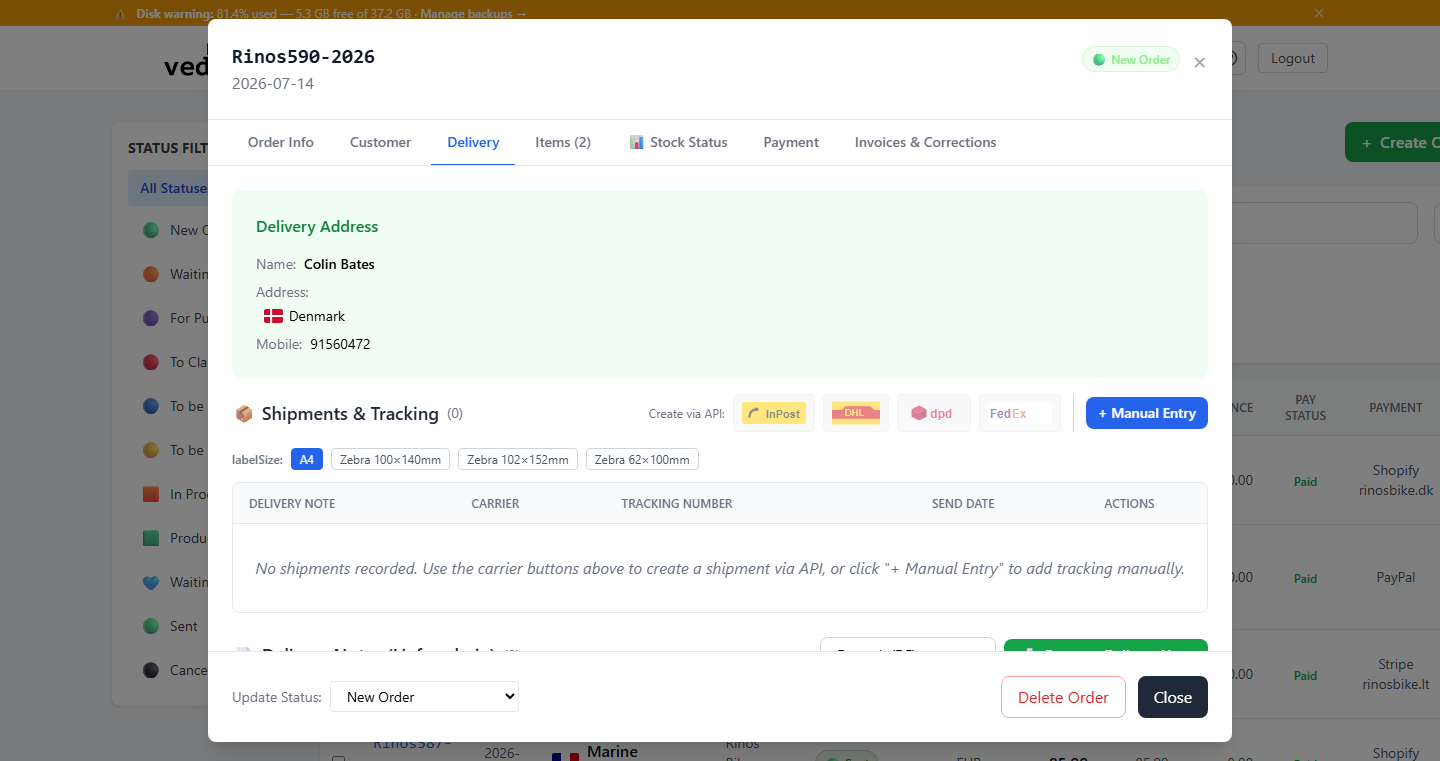
Label Formats Available
Label sizes are configurable per account, so you're not limited to a fixed list. Alongside the A4 default (standard PDF, suitable for laser/inkjet printers and digital archiving), your account can have any number of thermal formats defined — for example 100×140 mm, 102×152 mm, or 62×100 mm are common Zebra sizes. All configured sizes are available for every carrier: DHL, DPD, InPost, FedEx.
How to Print a Thermal Label
- Open an order and go to the Delivery tab.
- Find the shipment row in the shipments table.
- Click the download icon next to the shipment.
- A format picker appears with A4 plus your configured thermal sizes — click the one you need (e.g., "100×140").
- The PDF is downloaded already scaled to that size.
- Open the PDF and print — set the matching paper size in the printer dialog (or "Custom" with those exact dimensions).
- No scaling or fitting is needed — the PDF fills the label exactly.
How It Works Internally
When you select a thermal format, the ERP fetches the carrier's native label PDF (typically A6 or A4), detects the actual printed content area, crops to that bounding box, and scales the result to the exact target size. This means the label content is always centred and correctly sized regardless of the carrier's source format.
Tip: If your Zebra printer dialogue shows the wrong paper size, add the matching custom paper size (e.g., "100x140mm") in your OS printer settings once — it will then be available as a preset for all future label prints. You can add or remove label sizes yourself from the "Manage Sizes" option next to the format picker.