

VedronERP · Customer Management
Creating a Customer
Create new customers by filling in their contact information, billing address, and optionally a separate delivery address.
How to Create a Customer
- Go to the Customers page.
- Click the "Add Customer" button (or similar action button at the top).
- Fill in the customer details form including: name, company, email, phone, and tax ID.
- Enter the billing address: street, city, postal code, country.
- If the delivery address differs from billing, enter it in the delivery address section.
- Click "Save" to create the customer.
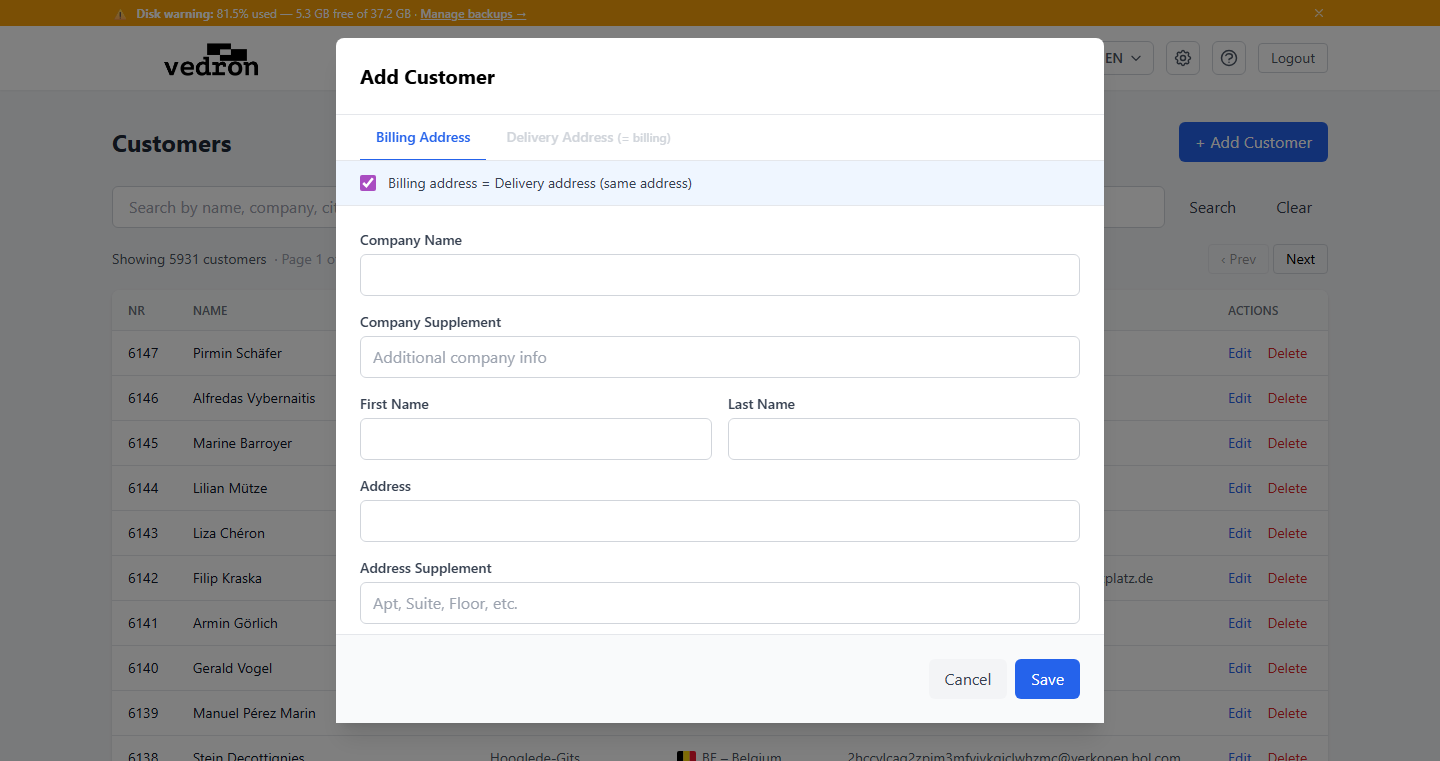
Billing vs. Delivery Address
Every customer has a billing address (used on invoices) and optionally a separate delivery address (used on shipping labels and delivery notes). If no delivery address is provided, the billing address is used for both.
Tip: Customer data is used across the system — in orders, invoices, and shipping. Make sure to enter accurate information, especially the tax ID for B2B invoicing.
Tip: The customer form has a data-consent checkbox ("Customer has consented to their data being collected, used and disclosed"). When you tick it, the ERP records the date, and you can note how consent was obtained (for example a signed order form or an email confirmation). Use it if data-protection rules in your country require proof of consent.
Tip: The form warns about a possible duplicate ("A customer with the same name, company, or email already exists"). Click "Use this customer" to keep the existing record. If it really is a different customer, click "Create new anyway". "Billing address = Delivery address (same address)" is ticked by default; untick it to enter a separate delivery address on the delivery tab.