

VedronERP · Analysis & Reports
Ta strona nie jest jeszcze dostępna po polsku. Wyświetlamy oryginał w języku angielskim.
Inventory Value
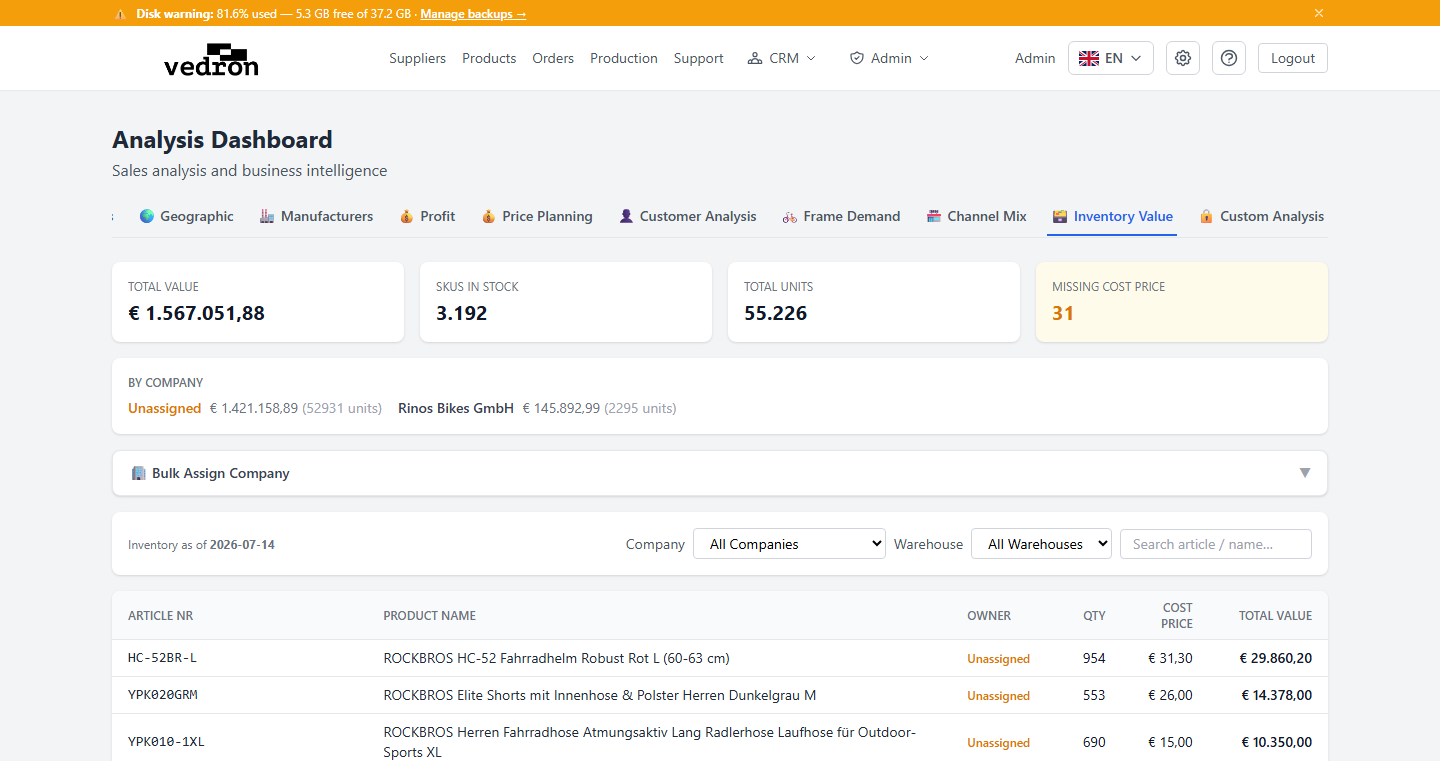
The Inventory Value tab shows the total value of your stock on hand, right now, based on quantity × cost price for every product.
Accessing Inventory Value
- Go to the Analysis page and click the "Inventory Value" tab.
- Optionally filter by company, warehouse, or search for a specific article.
What You See
- Summary cards for Total Value, SKUs in Stock, Total Units, and Missing Cost Price.
- A "By Company" breakdown when stock is split across more than one company.
- A product-level table with quantity, cost price, and total value per article. Rows with no cost price on record are highlighted, since those products are excluded from the value totals until a cost price is added.
Assigning Stock to a Company
If products show as "Unassigned," open the "Bulk Assign Company" panel to assign stock to the right company in bulk — filter by manufacturer, or restrict to unassigned items only, then choose the target company.
Tip: Keep an eye on the "Missing Cost Price" card — any product listed there is being left out of your total inventory value until you add a cost price.